What's New
Highlights of each MetaReader release.
1.3.0
Sharper diagnosis of damaged files, and 3D generation that stays out of your way.
Clearer diagnosis of damaged files
Two very different problems make Inventor refuse to open a file with an "Error loading segment"
message, and MetaReader now tells them apart. A stale segment registry is bookkeeping that drifted
out of sync - no data is lost, and MetaReader can repair it in place (a backup is written first).
Destroyed segment data - runs of zeroed bytes where compressed geometry used to be, the signature
of a disk fault or an interrupted copy - is different: the bytes are physically gone. MetaReader now
detects that case, names the affected segments, and explains that no repair is possible - the fix
is to restore the file from a backup (Vault or another PDM, the OldVersions folder, or a file backup).
No repair is offered that could only fail. The segments and repair CLI
commands report the same distinction.
Isolated, more reliable 3D generation
When MetaReader generates a viewable with Inventor, it now always starts its own dedicated Inventor instance and shuts it down when finished. It no longer attaches to an Inventor session you already have open, so generation can't be tripped up by a dialog or an edit in progress on your side - and a crash or hang during generation can never take your session with it. See 3D viewer.
Better logging
The app records much more about what it's doing - document loads and their timings, damage findings, each 3D generation step, and any failure with its details - so a problem is far easier to pin down from the diagnostics log in Settings → Open log.
1.2.0
3D everywhere: STEP files open with a 3D view, viewables generate without Inventor, and you can now draw on the model - markup layers, 3D paint and rebindable shortcuts.
STEP files
MetaReader now opens neutral STEP files (.stp / .step) - the full ISO-10303 header
(description, authors, organizations, originating system, schema), per-entity counts, products and
solid bodies, and the 3D model. STEP geometry is triangulated right in the app by Open CASCADE
and shown in the same viewer - no Inventor, no cloud conversion. Three STEP samples (AP203, AP214,
AP242) ship in the start-page gallery, and the CLI reads STEP too.
3D views without Inventor
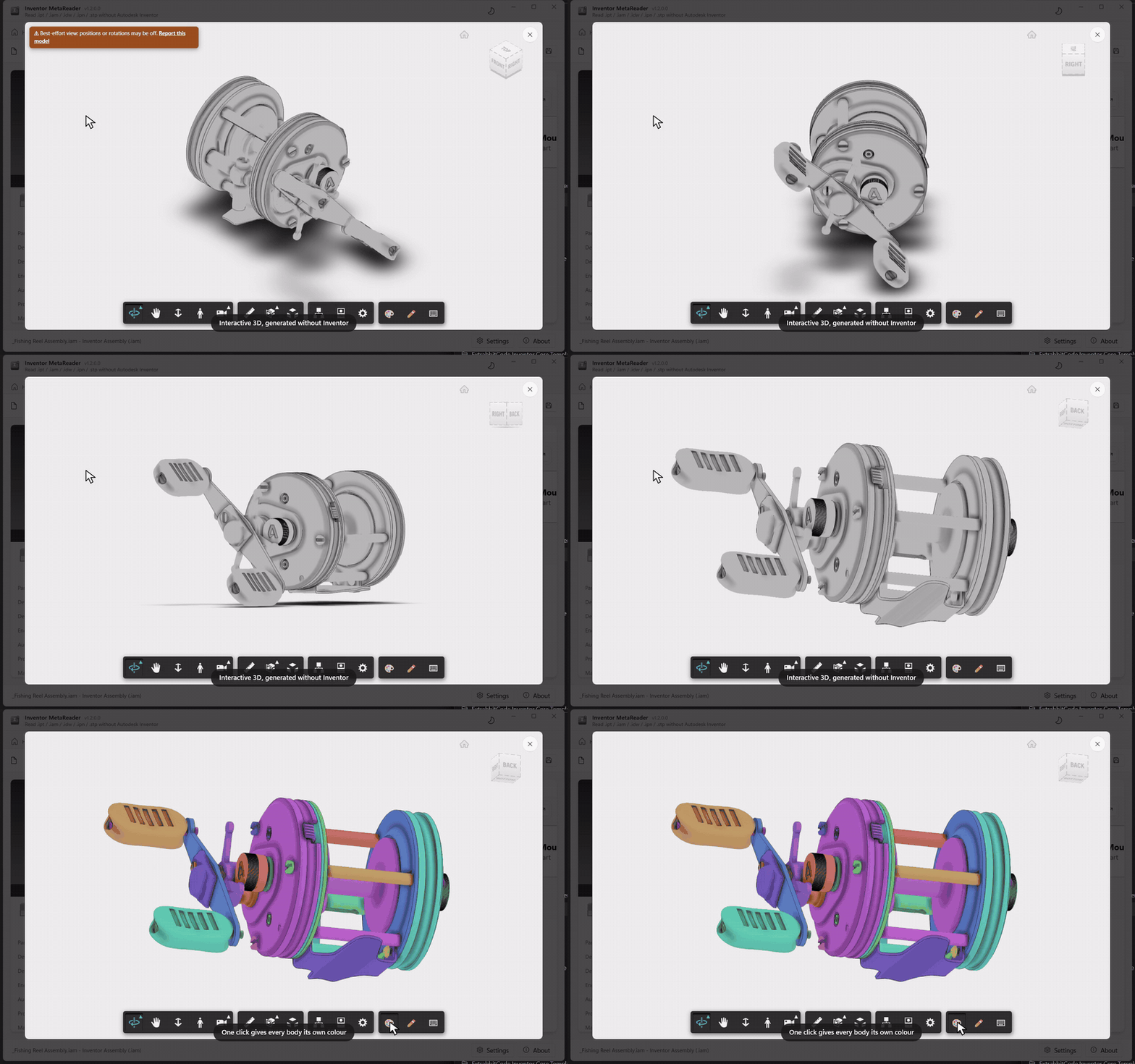
The 3D viewer gained a built-in converter: it decodes the display mesh Inventor cached inside the file, so parts and assemblies get a 3D view on machines without Inventor installed - it's used automatically there. With Inventor installed you choose (once) between exact Inventor generation and the fast, best-effort built-in engine; best-effort views carry a badge and a one-click way to report a model that looks wrong. See 3D viewer.
Redlining - draw on the model
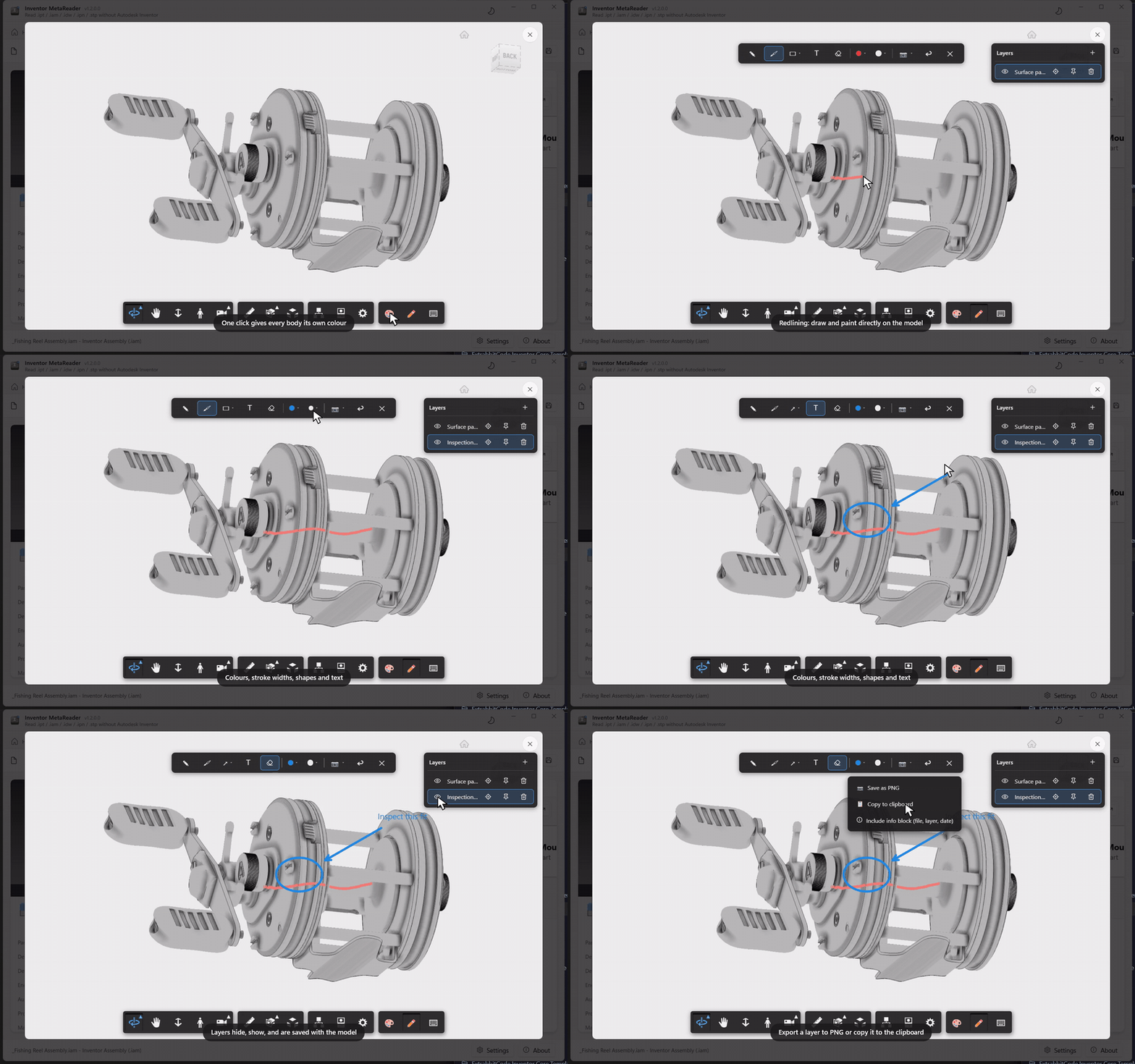
Circle a problem, add an arrow and a note, or paint straight onto the geometry with the 3D pen - strokes hug the surface and stay put while you orbit. Markup is organized in layers (rename, hide, per-layer camera pose) and saved with the cached viewable, so it's still there next time. Export any view as a PNG or to the clipboard, optionally stamped with file, layer and date. See Redlining.
Body coloring
One click (or C) gives every body its own colour - muted, evenly spaced hues that make
neighbouring parts easy to tell apart, on both engines.
Rebindable shortcuts
A keyboard button in the viewer toolbar opens a shortcuts window: see every binding, click one, press its replacement. Bindings persist like any other setting.
Smaller touches
- Try a sample gallery on the start page - including a real-world steel part with version history back to Inventor 11, and the three STEP schema samples.
- Model-state thumbnails - each state shows its own preview, click to enlarge.
- Models open shaded with edges for an Inventor-like look (toggle in the viewer settings).
- The Autodesk viewer is pinned to a fixed version for reproducible rendering.
- Fixes: a busy Inventor is retried during generation, and two rare crashes (tab tear-out, in-app tips) are gone.
1.1.0
A big update to the Windows viewer: an interactive reference graph, a pinned Home tab with recent files, colour-coded document categories, and more.
Reference graph, reimagined
The References tab is now an interactive graph you can explore - drag nodes, pan the background, scroll to zoom, and click a node to expand or collapse its children. Switch between three layouts from the toolbar - Left → Right, Top → Bottom, and an organic Network - draw each node with its thumbnail, and fine-tune the Network physics from the cogwheel. iPart factories and their members are highlighted, and the version / provenance panel now docks neatly below the graph. See References.
Home tab & recent files
The welcome screen is now a pinned Home tab that stays at the far left, one click away while you work, with a Recent files list of the documents you opened before. See The viewer.
Document categories
MetaReader now recognizes the subsystem that produced a document - Content Center, Piping, Frame Generator, Design Accelerator, Weldment, Sheet Metal, and iPart / iAssembly factories and members - and shows it as a colour-coded badge under the document name. See Document categories.
Try it instantly
A small sample assembly ships with the app, so you can open it straight from the welcome screen and explore parts, references and the 3D view without having to find a file first.
Hidden, silent 3D generation
When MetaReader launches Inventor to generate a 3D viewable, it now keeps Inventor's window hidden and suppresses its prompts (Run silently) by default - both toggle in Settings → 3D Viewer. An Inventor session you already had open is never touched. See 3D viewer.
Smaller touches
- Tabs - right-click a tab for Close other tabs / Close all tabs; Ctrl+W closes the current one (and its shortcut hint no longer shows everywhere).
- In-app tips point out features as you go - turn them off or reset them under Settings.
- Diagnostics log - open today's log file, or its folder, from Settings.
- The reference graph follows the light / dark theme the moment you switch it.