Model States
Compare every model state's iProperties side by side - without switching states in Inventor.
A part or assembly can have several model states, and each one can carry different iProperties - a different part number, project, material, or custom value. Normally you'd have to switch to each state in Inventor, one at a time, to see those differences.
MetaReader reads all of them at once, straight from the file - no Inventor, no switching. When a document has model states, a Model States tab appears.
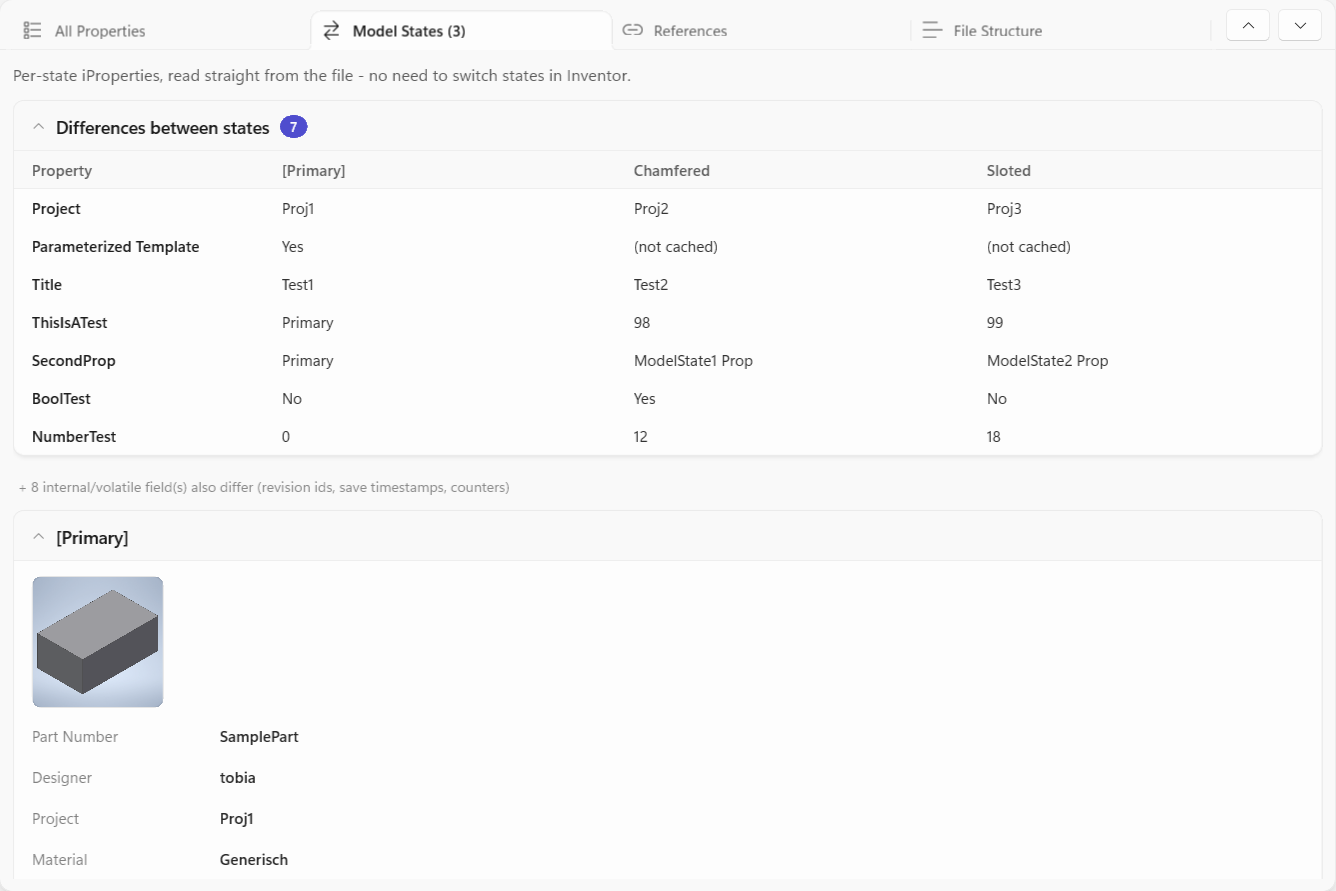
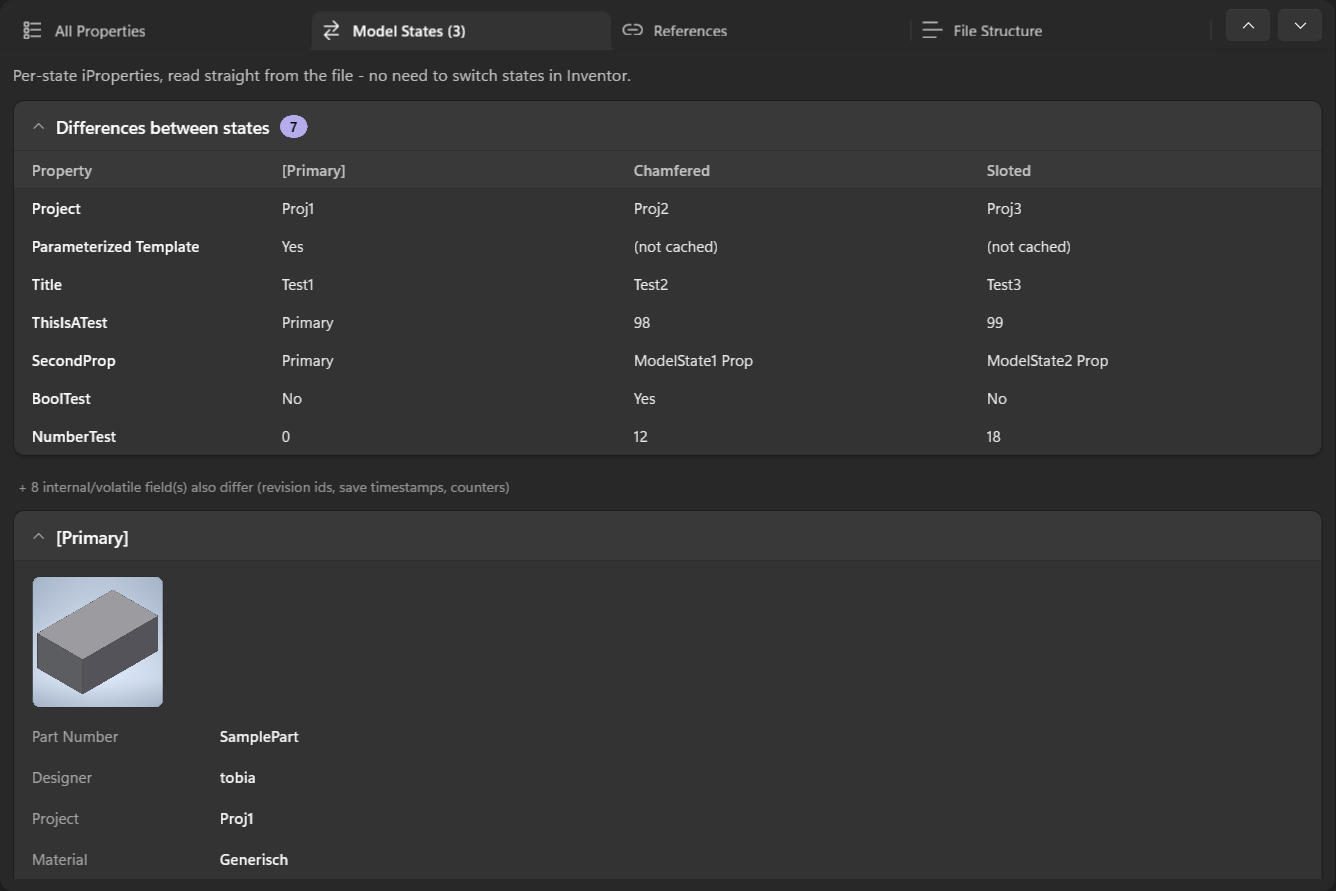
What you see
- Differences between states - a table at the top showing only the properties whose value
actually changes from one state to another. In the example above,
Project,Titleand the customThisIsATestdiffer across[Primary],Model State1andModel State2. - A per-state breakdown below, listing each state's key iProperties - each with its own cached preview thumbnail (click it to enlarge). Because a state can suppress features or change geometry, the previews can differ from one state to the next.
The first column is the document's top-level state - the one Inventor stores outside the model-state
members and names [Primary]; the other columns are the additional model states read from the file.
Volatile internal fields (revision IDs, save timestamps, counters) are summarized separately so the
meaningful differences stand out.
The (not cached) note
Sometimes a value shows as (not cached) instead of a real value. That's not a bug - it means
Inventor hasn't yet written that state's value into the part of the file MetaReader can read. It
happens when a property was added but a state hasn't been recomputed since.
To get complete data (Inventor 2027+): right-click the Model States node in Inventor's browser and turn on Generate All Model States on Save. Every save then recomputes all states, and MetaReader can read every per-state value. On older files, double-click each state once to rebuild it, then save.
Whatever can't be read shows as (not cached) rather than a wrong value - MetaReader never guesses.
There's a deeper, technical explanation of where these values live in How it works.