3D Viewer
Spin the model in 3D - viewables are generated once with Inventor and cached, locally or on a shared network store.
MetaReader can show the 3D model, not just its metadata. On a part or assembly, click the preview thumbnail (or the 3D button next to the file icon, shown when the thumbnail is hidden) to open an interactive viewer that fills most of the window. Use its toolbar to orbit, pan, zoom and fit; click outside the panel, press the ✕, or hit Esc to close.
Models open shaded with edges for an Inventor-like look. Toggle edges from the viewer's own Settings (gear) → Appearance → Display edges; your choice is remembered.
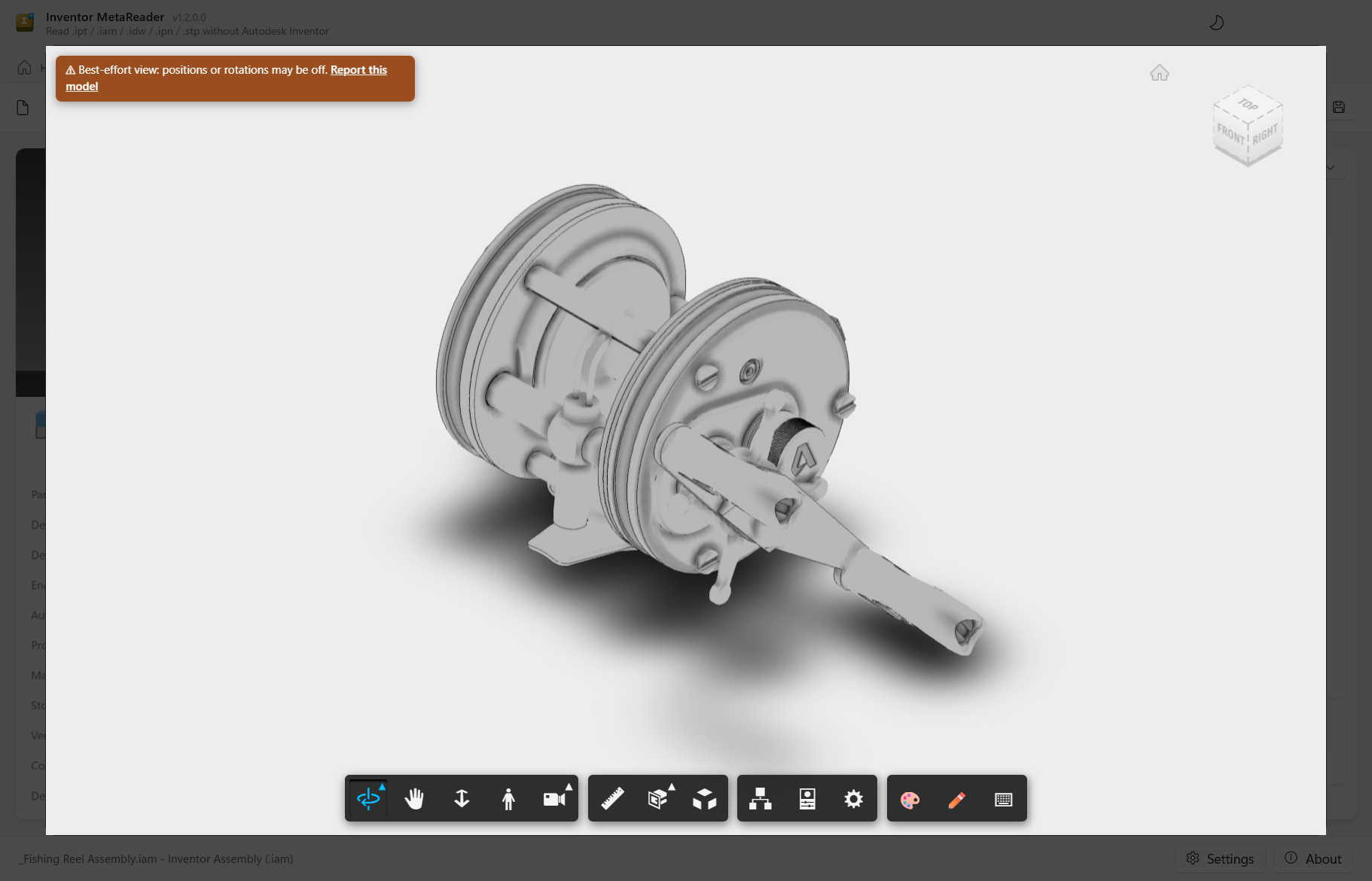
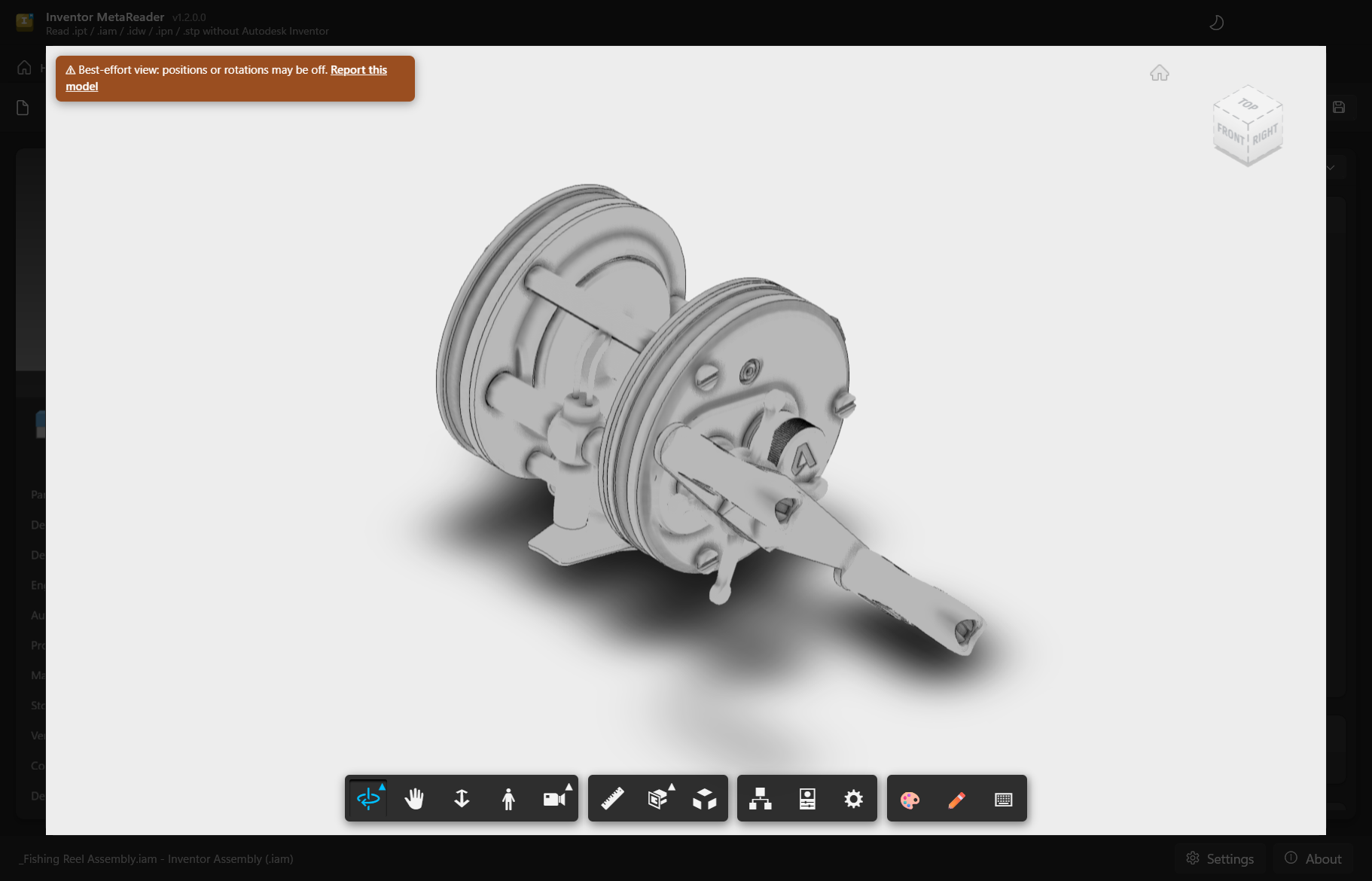
In the viewer you can also give every body its own colour (see below), measure distances, section and explode the model - and draw on it: circle a problem, add text, even paint straight onto the geometry. Markup lives on layers and is saved with the viewable; see Redlining.
Generate once, then cache
The 3D view is an Autodesk SVF viewable rendered by the Autodesk viewer. The first time you open a given model, MetaReader generates the viewable once and caches it. Every time after that - and for anyone else pointing at the same shared cache - it loads straight from the cache.
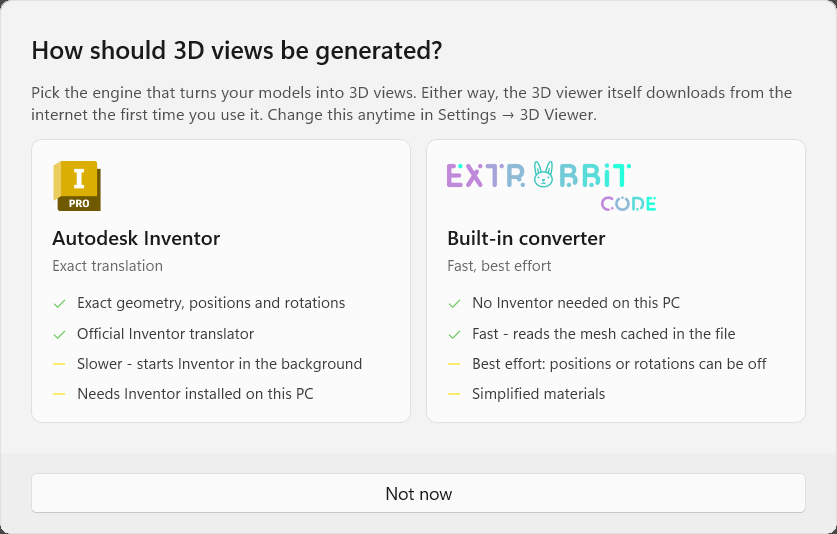
There are two engines that can do the generating:
- Autodesk Inventor (exact) - MetaReader drives Inventor's own translator in the background, so the viewable matches the model precisely. The first run on a large model can take a while.
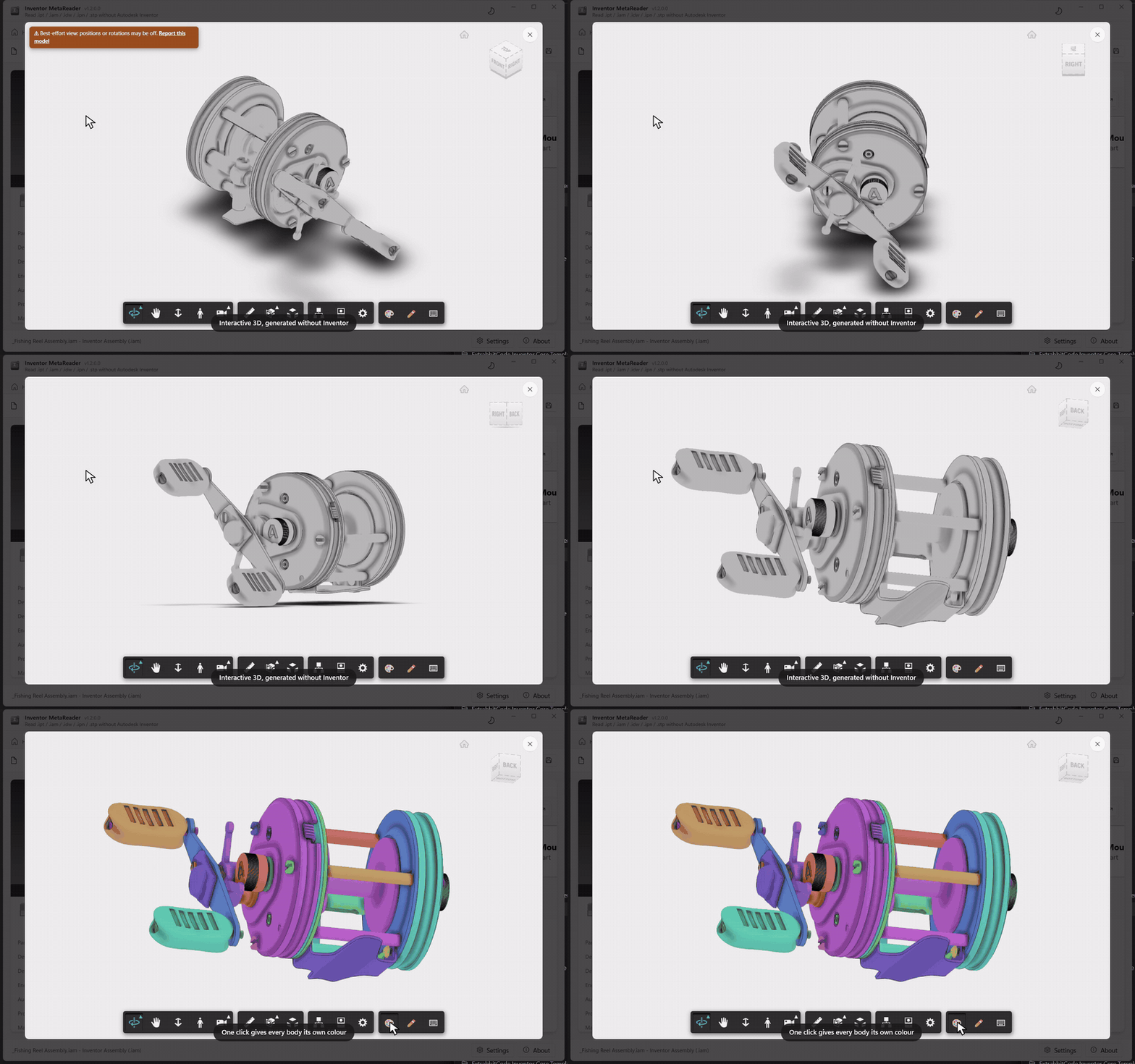
- Built-in converter (fast, best effort) - MetaReader decodes the display mesh that Inventor cached inside the file, with no Inventor installation at all. It's quick, but it's a best-effort reconstruction: on some assemblies, part positions or rotations may be off.
Which one runs? If Inventor isn't installed, the built-in converter is used automatically - the 3D view simply works on a machine that has never seen Inventor. If Inventor is installed, the first 3D view asks which engine you prefer, and the choice is remembered (change it any time in Settings → 3D Viewer).

Best-effort viewables are labelled: an amber "Best-effort view - positions or rotations may be off" badge sits in the corner, with a Report this model link that pre-fills an email in case something looks wrong - a sample file is the fastest way to get it fixed. Each cache entry also records which engine produced it.
The built-in converter reads the graphics saved inside the model, so the file must have been saved by Inventor at some point (that's true of virtually every real-world file). The viewer loads its rendering engine from Autodesk's CDN, so the 3D view needs an internet connection.
Body coloring
Assemblies and multi-body parts often render in a single material colour. The palette button in
the viewer toolbar (or the C key) gives every body its own colour - evenly spaced, muted hues
that make it easy to tell neighbouring parts apart. Click again to go back. Works on both engines,
and the initial mode is configurable in Settings → 3D Viewer.
STEP files in 3D
STEP files take a different route: there's no SVF and no engine choice. The geometry is triangulated
right in the app by Open CASCADE (via occt-import-js),
converted to glTF and shown in the same Autodesk viewer - no Inventor involved, ever. Redlining and
body coloring are features of the Inventor viewable path and aren't available on STEP views.
The cache (and a shared store)
Viewables are keyed by the content hash of the model, so the same file yields the same key on any machine. A shared network store therefore dedupes across users and PCs: the first person to open a model generates it; everyone else gets a cache hit.
Configure it in Settings → 3D Viewer:
- Inventor version - which installed release generates viewables, or Ask each time.
- Hide Inventor / Run silently - MetaReader generates each viewable in its own dedicated Inventor instance, which it starts and then shuts down again. These options keep that instance's window hidden and suppress its prompts (both on by default). An Inventor session you already had open is never attached to or disturbed.
- Shared cache folder - a network path so viewables are reused across users; leave empty for a local-only cache under your profile.
- Cached viewables - Open the local cache folder, or Clear it to reclaim space.
When several Inventor releases are installed and none is chosen yet, the first generation asks which to use and remembers it.
Document Categories
MetaReader recognizes what kind of Inventor document you opened - Content Center, Frame Generator, Weldment, iPart/iAssembly and more - straight from the file, shown as a colour-coded badge.
Redlining
Mark up the 3D model - draw, annotate and paint on the geometry, organized in layers that are saved with the viewable.