The Viewer
A tour of the MetaReader window - the preview, the key-property sidebar, and every iProperty grouped by set.
The app opens on a pinned Home tab: the drop zone for opening files and a Recent files list of what you opened before. Home stays at the far left, so the welcome screen and your recents are always one click away while you work.
Once a file is open, it gets its own tab, with two halves: a summary card on the left and a set of detail tabs on the right.
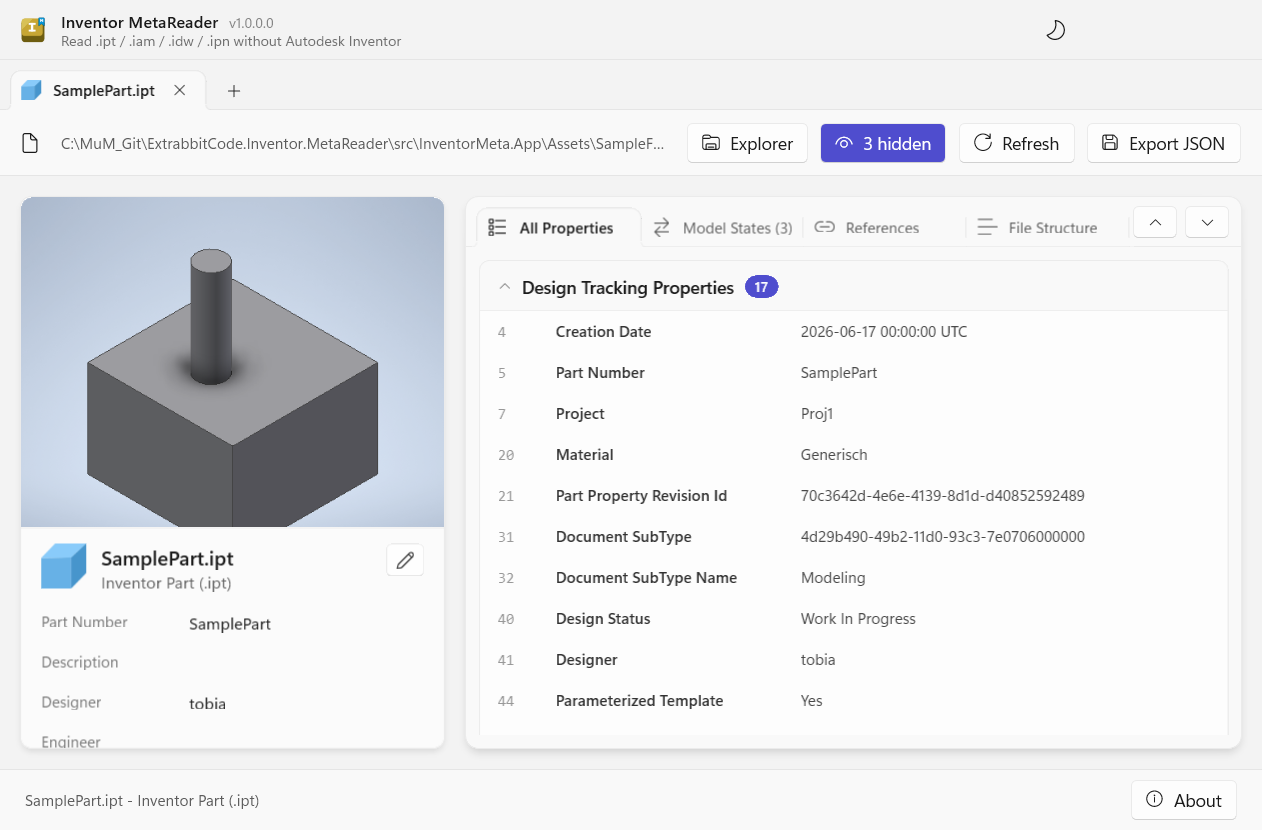
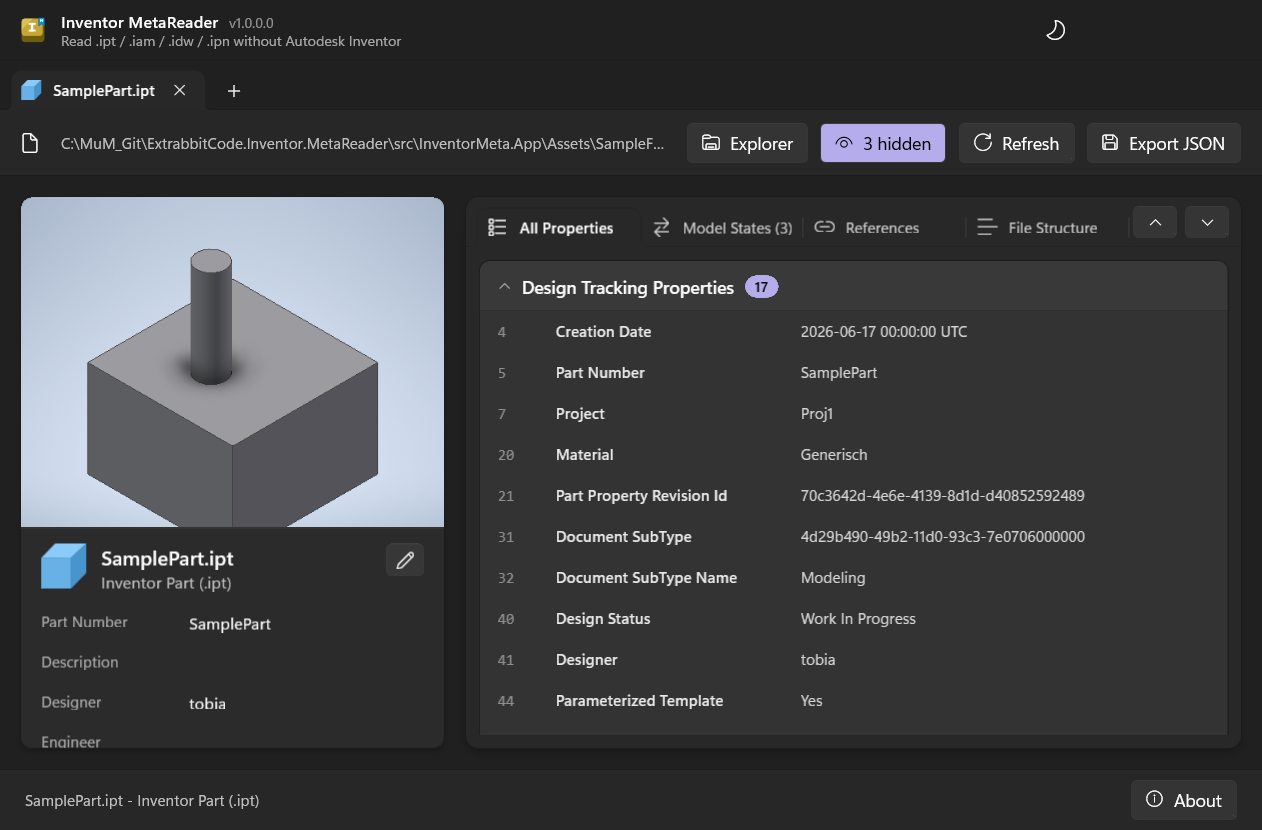
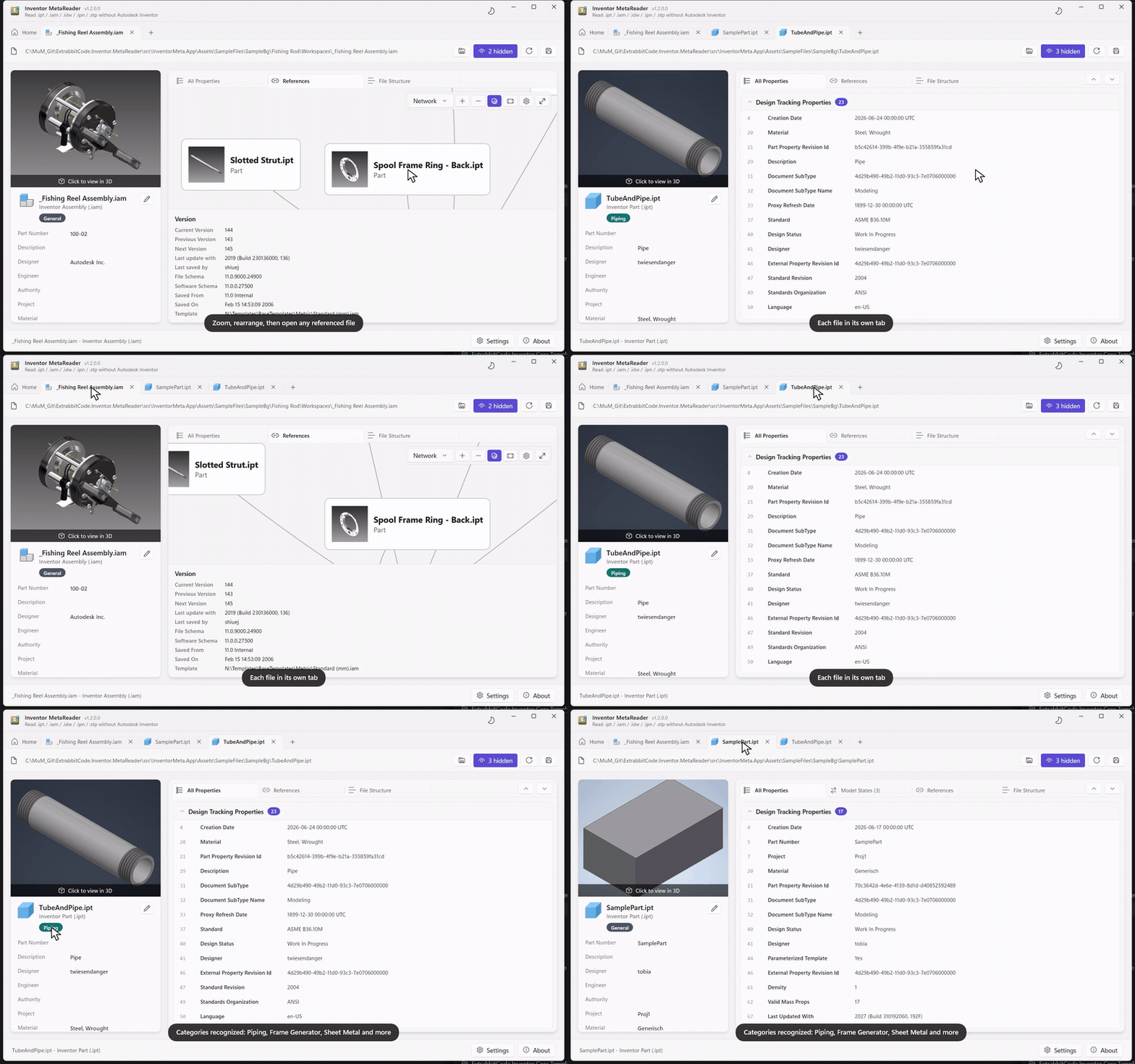
Open as many files as you like - each gets its own tab, so hopping between documents is one click (and a tab can be dragged out into its own window to compare two side by side):
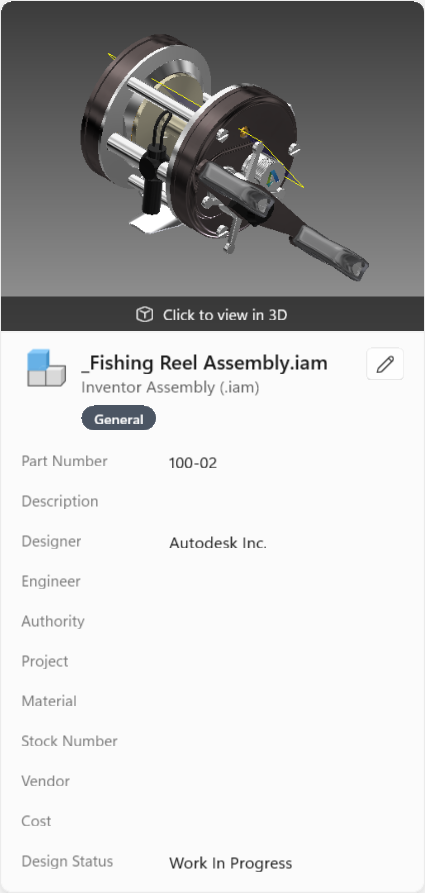
The summary card (left)
- The preview thumbnail Inventor saved with the file, plus the file name and document type. On a part or assembly, click the thumbnail to open the 3D viewer (or use the 3D button when the thumbnail is hidden).
- A key iProperties list - the values you most often want: Part Number, Description, Designer, Material, Project, Status, and so on.
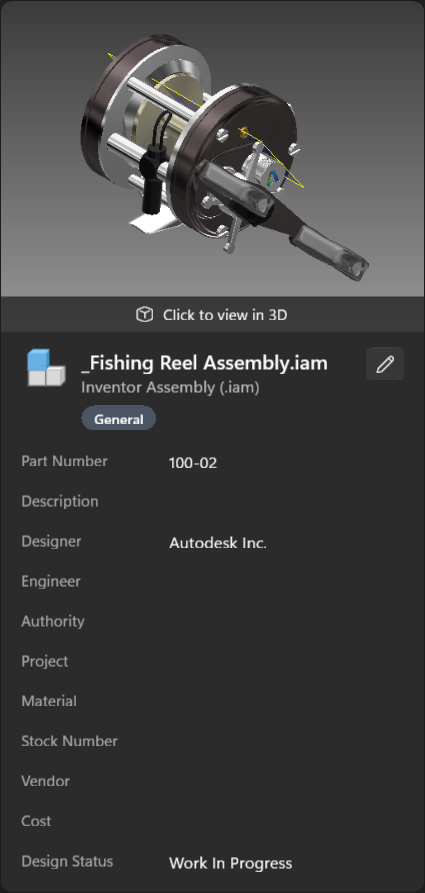
Customize the sidebar
Click the pencil icon on the card to choose exactly which properties appear here. You can:
- Add or remove any property in the file.
- Drag to reorder them.
- Show or hide the thumbnail.
Your layout is remembered and applied to every file you open, so the sidebar always shows the fields you care about.
The detail tabs (right)
- All Properties - every property in the file, grouped into cards by property set (Design Tracking, Summary Information, custom properties, and so on). Click a card header to collapse it, or use the expand/collapse-all buttons.
- Model States - per-state properties, shown only for multi-state parts and assemblies. See Model states.
- References - the files this document depends on. See References.
- File Structure - the raw internal layout of the file. See File structure.
Handy touches
- Click any value to copy it to the clipboard - a quick toast confirms what you copied.
- Hide the noise. MetaReader hides Inventor's internal bookkeeping sets by default; the N hidden button lets you reveal them (or hide anything else you don't want to see). Right-click a tab or a property to hide it; click N hidden → Show to bring it back.
- Light or dark. Use the sun/moon button in the title bar to switch themes; your choice is remembered.
- Show in Explorer. The Explorer button opens File Explorer with the current file selected, so you can jump straight to it on disk. You can also reveal any referenced file this way - see References.
- Refresh re-reads the file from disk - handy after you re-save it in Inventor.
- Export JSON writes all the metadata to a file. See File structure.
- Tabs. Each file opens in its own tab to the right of the pinned Home tab; Ctrl+W closes the current one, and right-clicking a tab offers Close other tabs / Close all tabs (Home is never closed).
- Settings. The Settings button in the bottom bar holds the 3D viewer options - Inventor version, a shared cache folder, and clearing the local cache - plus a Diagnostics log (open today's log or its folder) and the in-app tips toggle.